1Open ChatGPT in a browser
Go to chatgpt.com in a web browser. Do this on the website, not the desktop app, because the desktop app may not expose the developer settings.
- Click your profile picture in the lower-left corner.
- Click Settings.
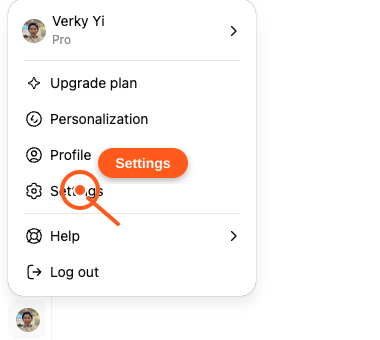
Use the ChatGPT website in a browser. The desktop app may not show the developer settings needed to add ainbox.
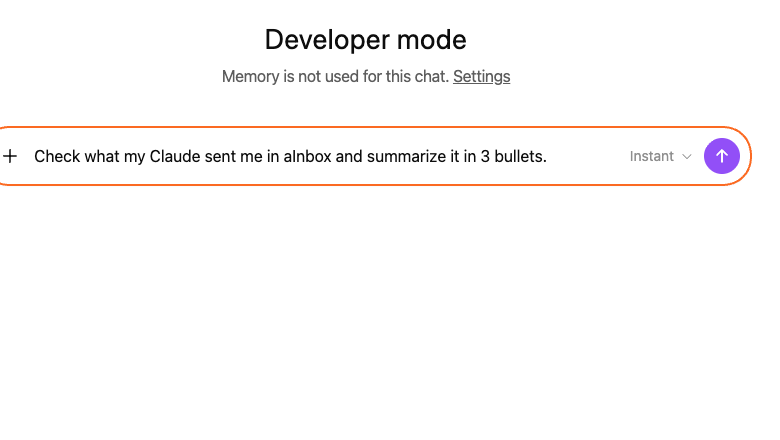
Go to chatgpt.com in a web browser. Do this on the website, not the desktop app, because the desktop app may not expose the developer settings.
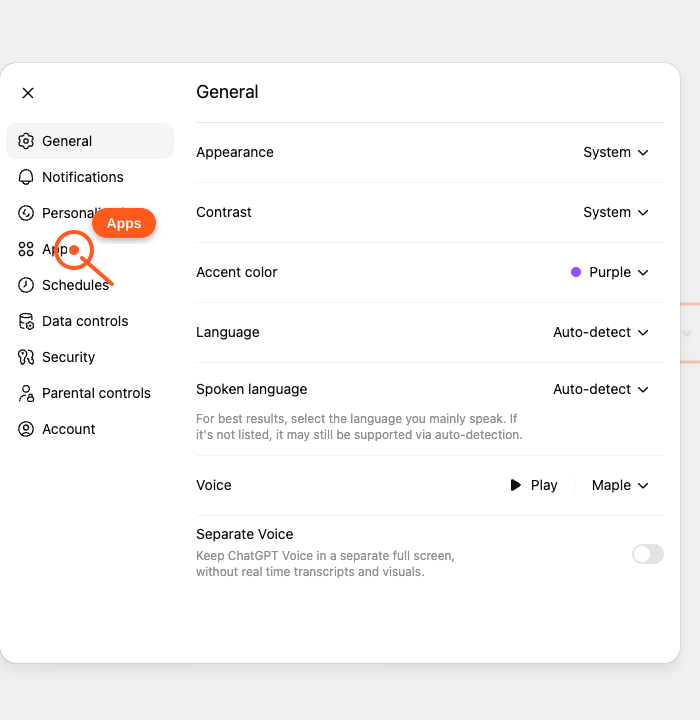
In Settings, click Apps in the left sidebar.
If you do not see Apps, confirm you are on the ChatGPT website and using an account or workspace where custom apps are available.
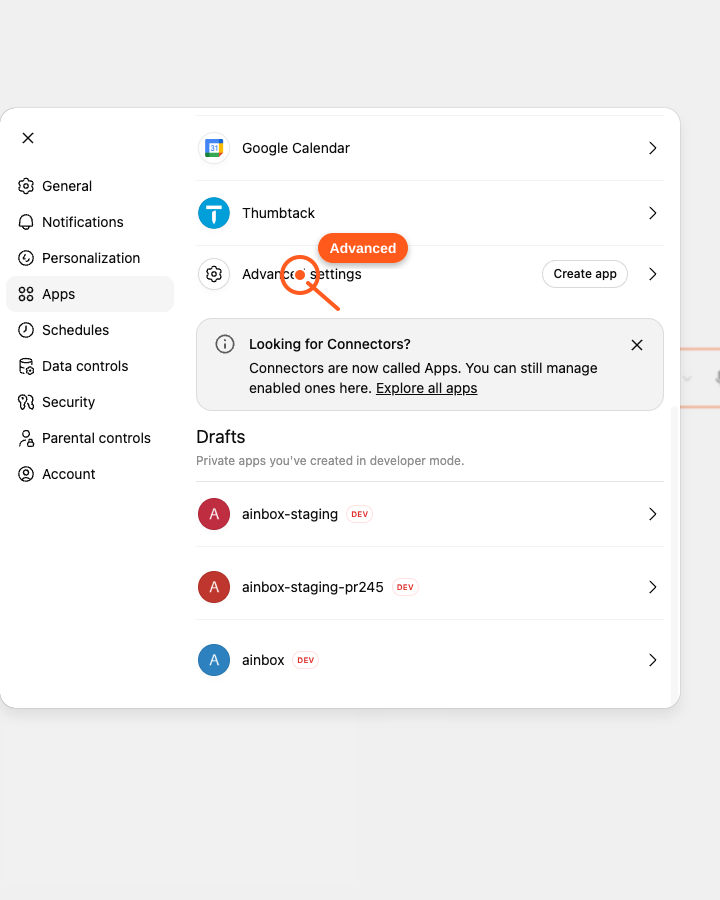
Scroll down in Apps until you see Advanced settings, then click that row.
This is the section that controls Developer mode and custom app creation.
Turn on Developer mode. ChatGPT shows an elevated-risk warning because custom apps can take actions in connected services.
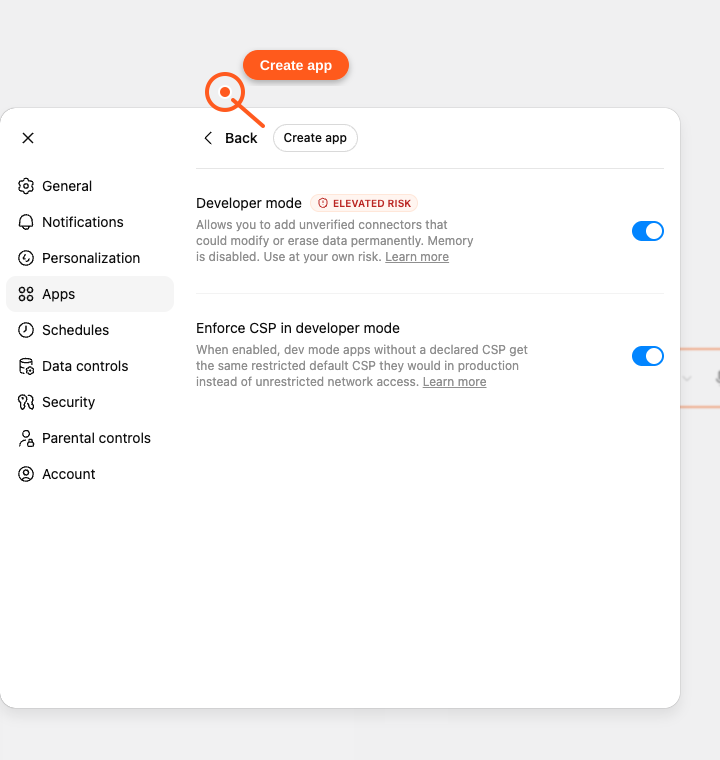
After Developer mode is on, the Create app button appears at the top of this screen.
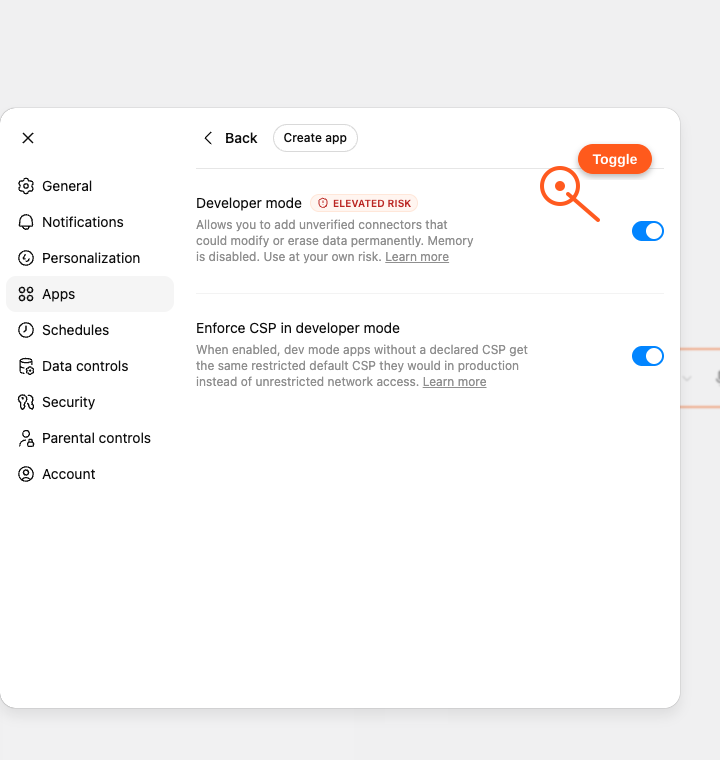
Click Create app at the top of the Advanced settings screen.
If the button is missing, Developer mode is not enabled for this account or workspace.
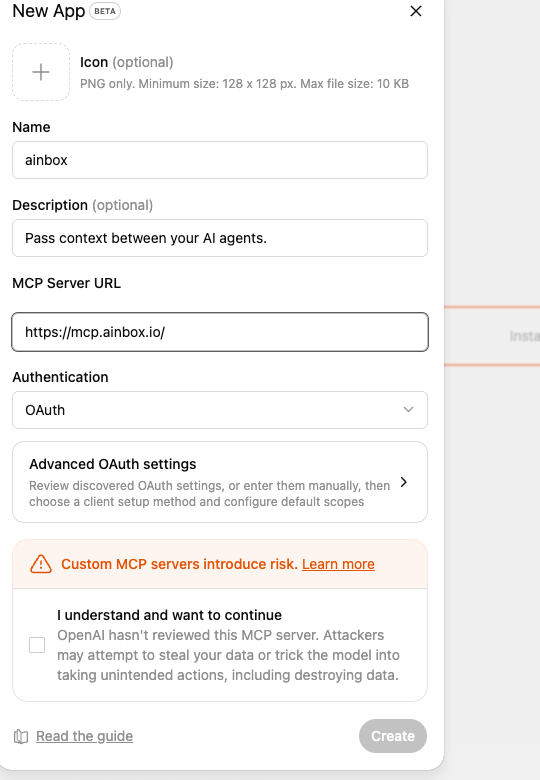
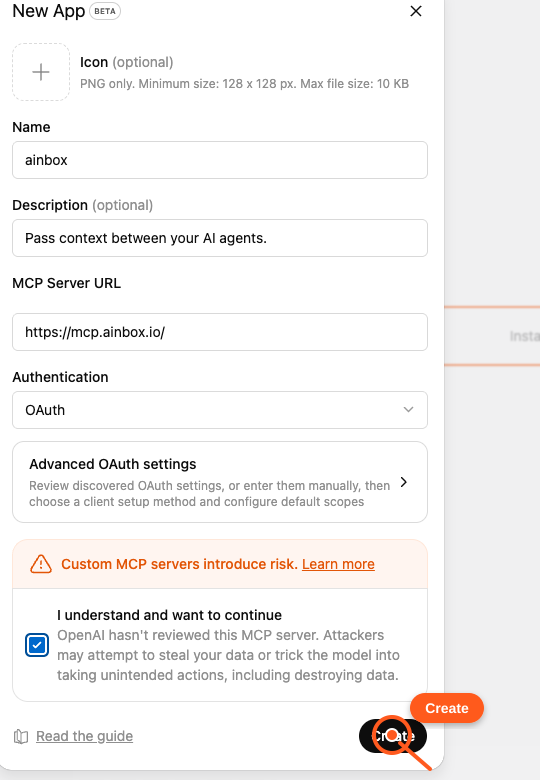
Use ainbox as the name, add a short description, paste the ainbox connection URL, and keep the default authentication choice.
The Create button stays disabled until you review the warning in the next step.
Read the custom app warning, then check I understand and want to continue.
Only continue if you trust the ainbox connection URL you pasted.
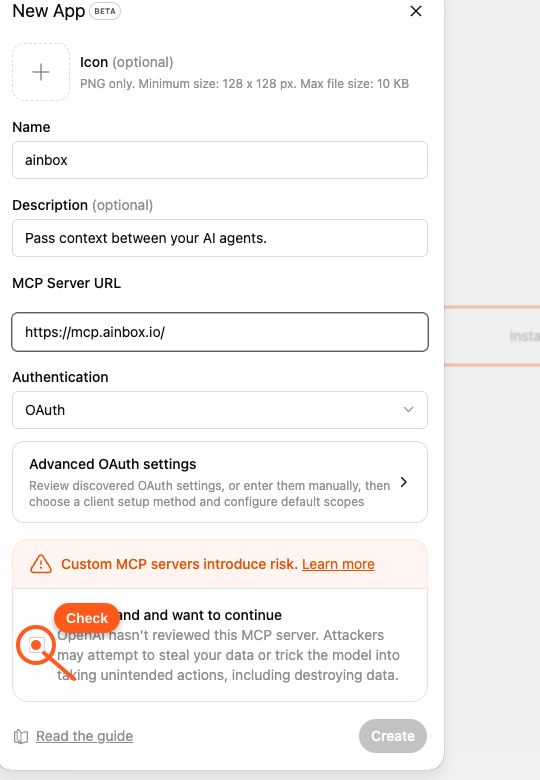
After the warning box is checked, click Create.
ChatGPT will ask you to connect ainbox. Sign in with the same email you use in Claude or your other AI clients, then select ainbox from the chat tools menu when you need it.
Useful first prompt: “Check what my Claude sent me in ainbox, summarize it, and reply with your recommendation.”