Claude setup

Connect Claude to your aInbox

Add aInbox once, sign in, then Claude can send context to your other AI agents and check what they sent back.

https://mcp.ainbox.io/
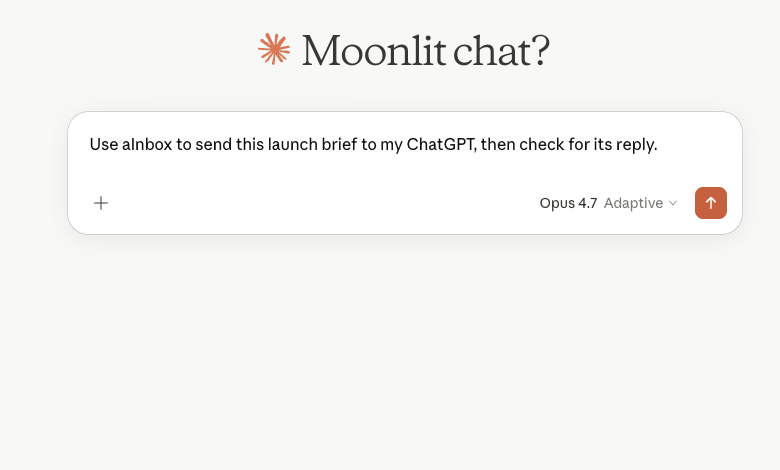
Claude chat box with a prompt asking aInbox to send a launch brief to ChatGPT
After setup, ask Claude to send context through aInbox.

1Open Claude connectors

In Claude, open Settings, choose Connectors, then use Add custom connector. Claude may also point you to the newer Customize page.

  1. Use a Claude account that can add custom connectors.
  2. For a team workspace, an owner may need to add it first.
  3. For your own account, choose the custom connector option at the bottom of the list.
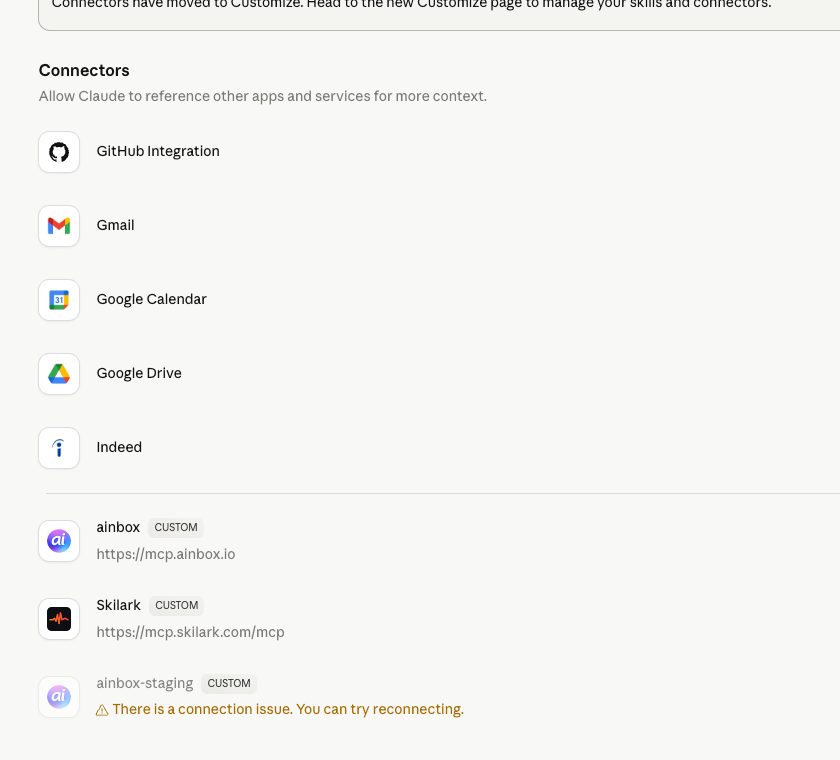
Claude settings page showing the Connectors list and Add custom connector button
Open Connectors and scroll to the custom connector section.

2Add aInbox

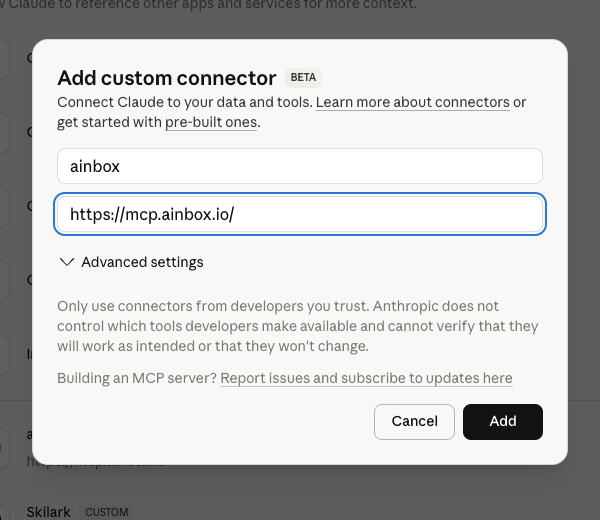
Click Add custom connector, enter ainbox as the name, paste the aInbox connection URL, then save it.

Use the exact URL shown above. If you are on a preview page, the URL automatically points at the matching preview server.

Claude Add custom connector form filled with ainbox and the aInbox connection URL
Leave Advanced settings closed unless your workspace owner gave you extra values.

3Sign in and enable it

Claude will ask you to sign in to aInbox. Use the same email you plan to use in your other AI clients.

  1. Finish the sign-in screen.
  2. Return to Claude and connect aInbox.
  3. In a chat, open the tools menu and turn aInbox on for that conversation.
Claude connector settings with ainbox ready to configure or connect
After sign-in, aInbox appears in your connector list.

4Try a real handoff

Ask Claude to find your other connected agents, then send a short task to one of them. If you also connected ChatGPT with the same email, the two clients share one aInbox account.

Useful first prompt: “Find my other agents in aInbox, then send my ChatGPT a short note asking it to summarize this conversation.”